
Denoise
Denoise grainy photos on iPhone without uploading them.
Noisy photos often come from low light, older phone cameras, cropped images, or small downloads. Local Upscale gives you a focused denoise mode that runs on your iPhone or iPad, then lets you compare the result before saving a new image.
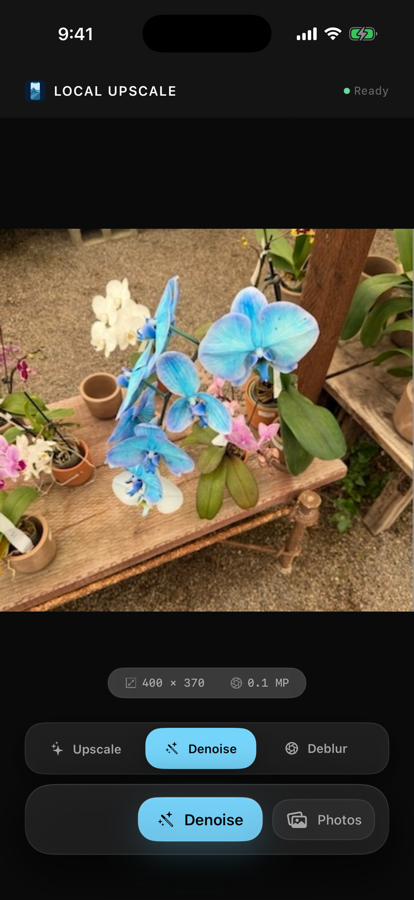
When denoise is the right mode
Choose denoise when a photo has visible grain, color speckles, low-light noise, or rough compression artifacts. If the image is mostly soft or out of focus, try deblur instead. If it is simply too small, start with 4x upscale.
A private iPhone workflow
- Open the grainy photo you want to clean.
- Select denoise when noise is the main issue.
- Run the enhancement locally on your device.
- Compare the original and enhanced image.
- Save a new copy to Photos only if the result is better.
Local Upscale is designed around on-device processing. It does not require an account, does not show ads, and does not upload your selected photo to an app server for denoising.
Where it helps most
Denoise is useful for low-light family photos, old phone pictures, saved downloads, cropped product images, social-media exports, and reference photos where you want a cleaner version without starting a recurring photo-enhancer plan. If the image is an old family snapshot or scanned print, use the old-photo restoration workflow to choose the right mode first.