On-device photo upscaler · iPhone, iPad & Mac

Make small photos bigger and clearer, without uploading them.

Local Photo Upscaler runs AI upscaling, noise reduction, sharpening, and face restoration on your own device. No account, no upload queue, no subscription. Pick a photo, compare the result, save a new copy.

$9.99 once. No subscription, in-app purchases, or ads. Family Sharing included. Pricing details

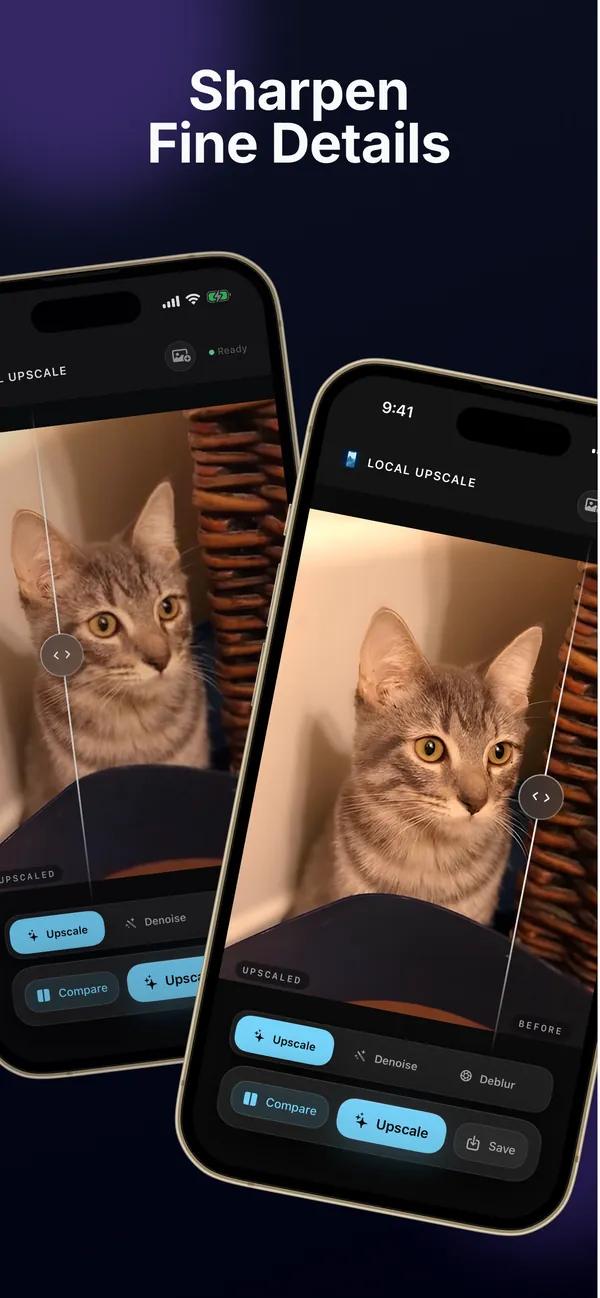
Original: close crop of a cat photo, 300 × 387 source enlarged four times Upscaled: close crop of a cat photo, 300 × 387 source enlarged four times
A 300 × 387 photo taken to 1200 × 1548 with Upscale. Right: the original, resized normally. Left: the app’s 4× output. Drag to compare.
  • 4×AI upscale, up to about 17 MP
  • 0 uploadsProcessing stays on device
  • $9.99Once, U.S. App Store
  • iOS 18.2+iPhone, iPad, Apple silicon Mac

Four modes

One tool for each kind of bad photo.

Pick the mode that matches what you can see: too small, too grainy, a little soft, or a face that needs help. Each one says plainly what it cannot do.

01 · upscale

Upscale

An AI model redraws the photo at four times its width and height. Best for small photos, old downloads, and tight crops.

Limit: Output is capped at about 17 megapixels. Larger photos are scaled down first, so crop to the part you need for the full 4×.

02 · denoise

Denoise

An AI denoising model smooths sensor grain and color speckle while trying to keep edges. The photo keeps its original dimensions.

Limit: Heavy grain can come back smoother but softer. Check hair, fabric, and foliage before saving.

03 · sharpen

Sharpen

A conservative luminance sharpen for photos that are almost in focus. It keeps the original dimensions and colors.

Limit: Not an AI deblur. It cannot recover motion blur or a badly out-of-focus shot.

04 · faces

Faces

Finds faces in the photo and runs an AI face-restoration model on each one, then blends the result back in.

Limit: Needs a clear, visible face. AI may change fine facial details, so compare carefully for family archives.


Not sure which mode to use? Read the guide →

Real output

Results from the app, not mockups.

These pairs were made by running sample photos through the app’s own processing code. Drag each slider. Results depend on the photo you start with.

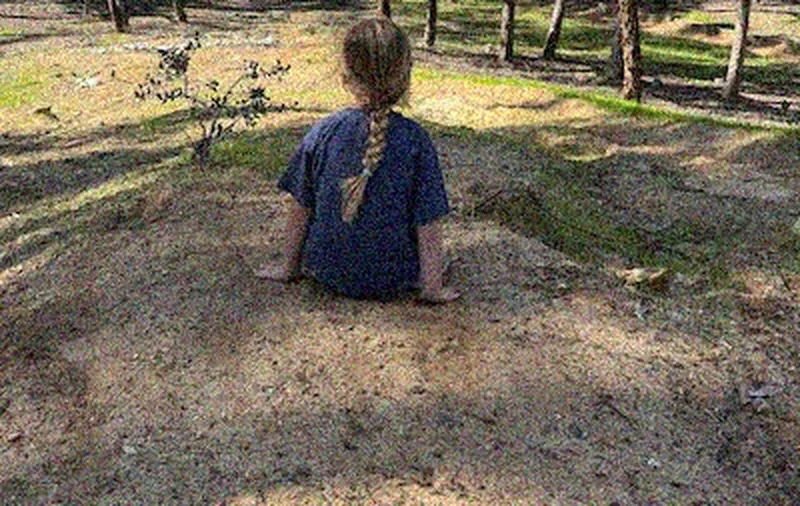
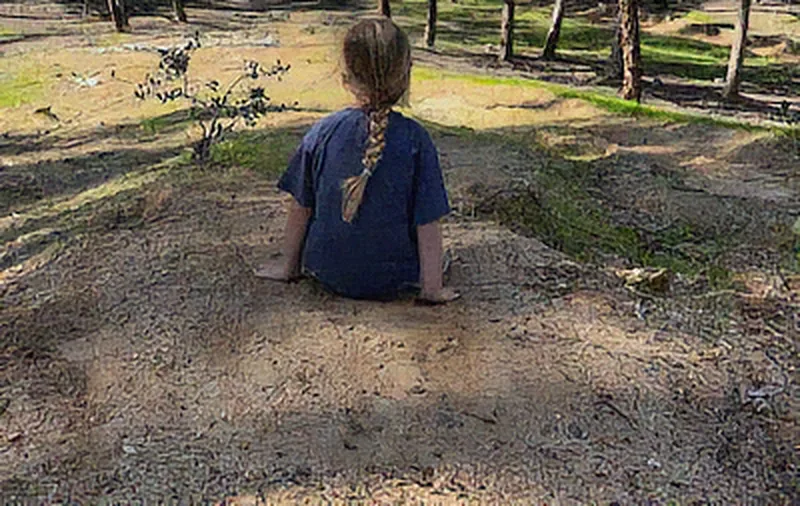
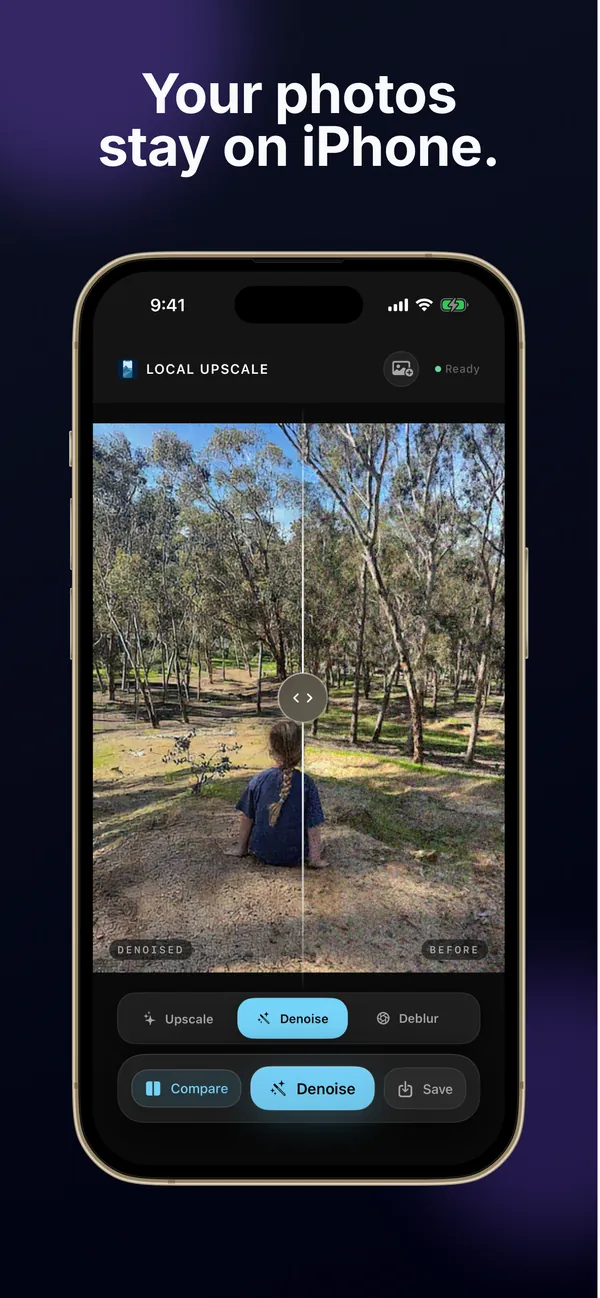
Original: grainy park photo of a child sitting on dirt Denoised: grainy park photo of a child sitting on dirt
Denoise on a grainy 400 × 533 phone photo, shown in detail. Same dimensions, less color speckle.
Original: close-up of a black and white cat Sharpened: close-up of a black and white cat
Sharpen on a slightly soft 1206 × 1414 photo. A gentle edge boost, not a rescue for a blurry shot.
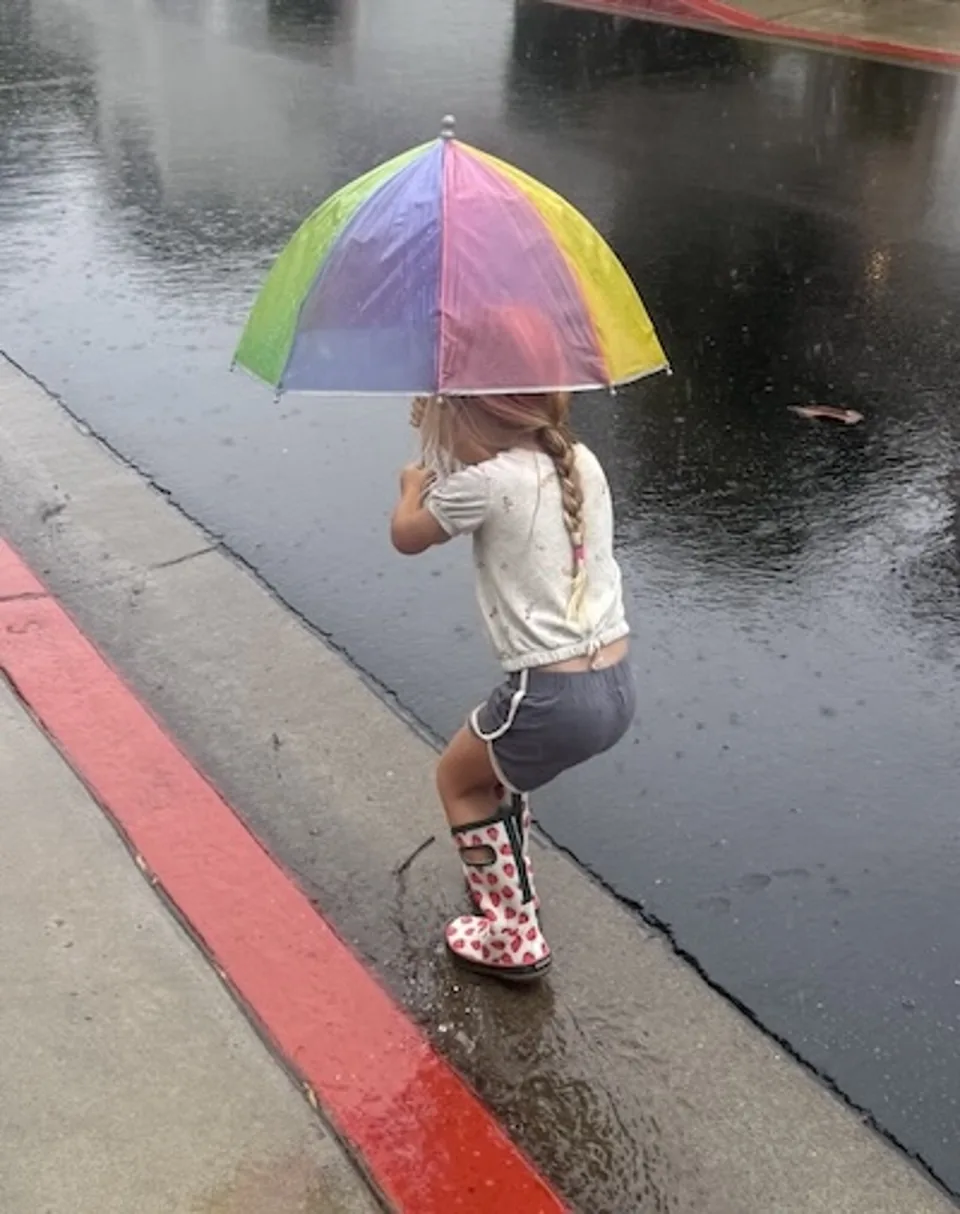
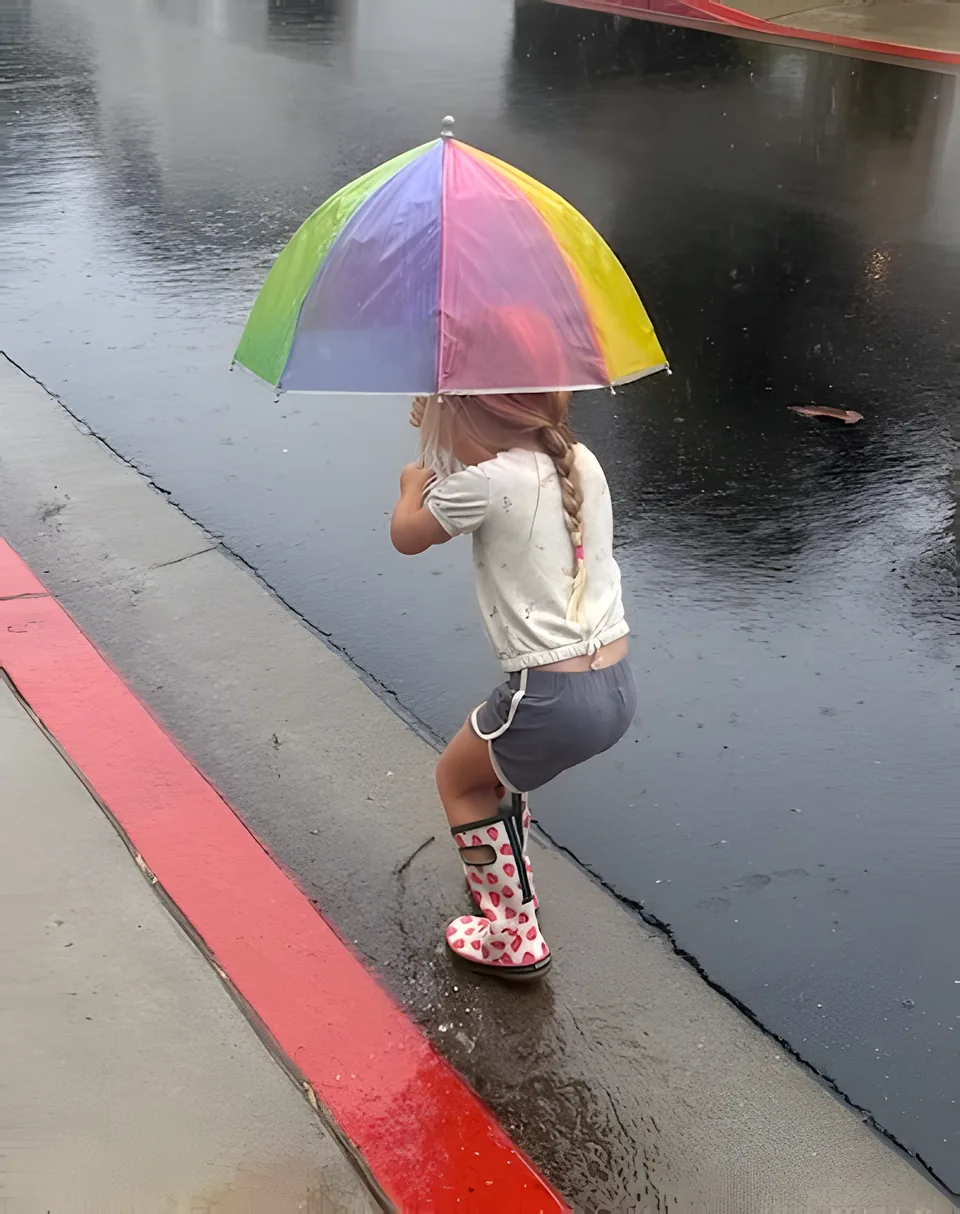
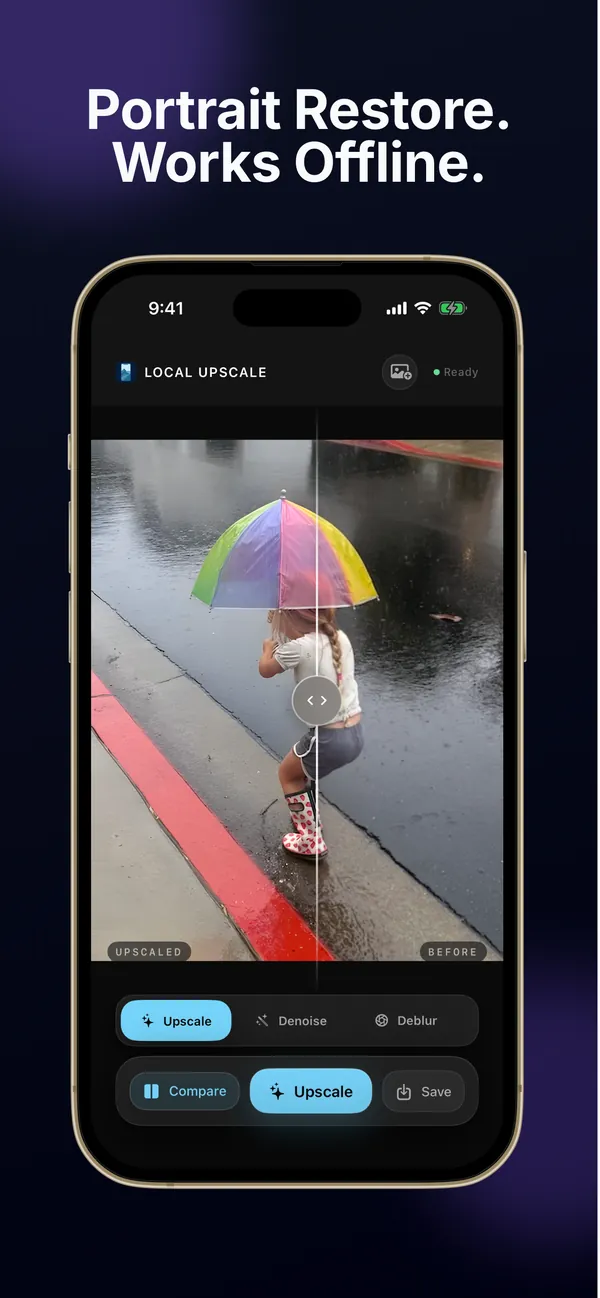
Original: child with a rainbow umbrella on a wet street Upscaled: child with a rainbow umbrella on a wet street
Upscale on a 400 × 506 photo, output 1600 × 2024.
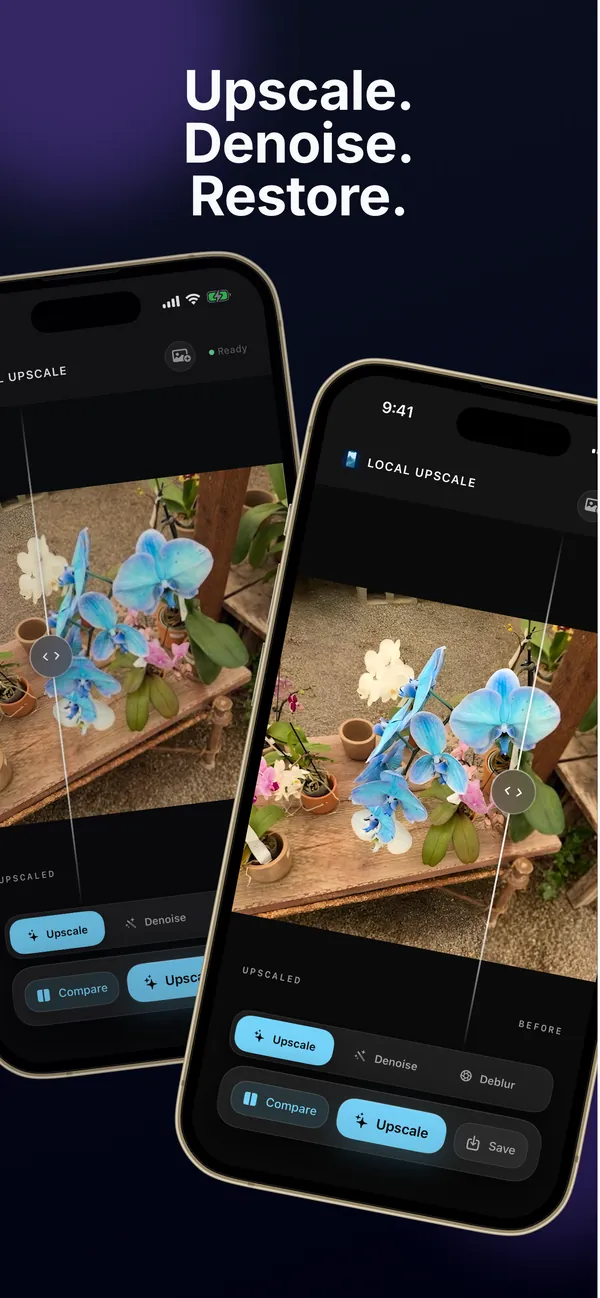
Original: blue orchids on a wooden table Upscaled: blue orchids on a wooden table
Upscale on a 400 × 370 photo, output 1600 × 1480.

Privacy

Your photo never leaves the device you took it on.

Cloud enhancers upload your picture, process it on their servers, and delete it later under their own policy. Local Photo Upscaler does the work locally with models that ship inside the app, which is why it still works in airplane mode.

App Store privacy label

Data Not Collected

“The developer does not collect any data from this app.” As shown on the App Store listing, checked September 25, 2026.

  • No uploadThe photo you pick is processed on your iPhone, iPad, or Mac. There is no server to send it to.
  • No accountOpen the app and choose a photo. Nothing to sign up for.
  • No ads or trackingNo advertising or analytics SDKs inside the app.
  • Works offlineEnhancement runs without a connection. You only need internet to download the app and updates.
  • Original untouchedResults are saved as a new copy in Photos.

How offline upscaling works →

How it works

Choose, enhance, compare, save.

One photo at a time, with a before-and-after slider so you decide whether the result is actually better.

Step 1

Choose a photo

From Photos on iPhone and iPad. On Mac you can also open image files.

Step 2

Pick a mode and apply

Upscale, Denoise, Sharpen, or Faces. The app shows the output size before you run it.

Step 3

Compare, then save

Drag the slider, zoom in on eyes, edges, and texture, and save a new copy only if it helps.

Upscale, denoise, and restore on iPhone
Sharpen fine details comparison on iPhone
Denoise comparison of a park photo on iPhone
Portrait restore comparison on iPhone, works offline

Screenshots from the current App Store listing. They were captured before version 1.1.8, where the modes are named Upscale, Denoise, Sharpen, and Faces.

Honest limits

What it will not do.

An upscaler makes an educated guess about missing detail. These are the cases where that guess runs out.

Full 4× on big photos

Output tops out near 17 megapixels. A 12 MP iPhone photo gets only slightly larger; crop to the subject first.

Motion blur and missed focus

Sharpen helps slight softness. It cannot reconstruct a shaky or badly out-of-focus shot.

Exact faces

Faces is AI restoration and can change fine features. Compare carefully before replacing a family photo.

Unreadable text

If letters are not legible in the source, no mode will reliably recover them.

Batch, RAW, or video

It works on one still photo at a time. Desktop tools like Topaz are built for batches and RAW files.

Scratches or color

No scratch removal and no colorizing. It enlarges, cleans, and sharpens what is already there.

Price

Pay once instead of every week.

Many upscalers are sold by the week, the month, or the credit. Here is how the listed prices compare, checked September 25, 2026.

AppWhere it processesU.S. price
Local Photo UpscalerOn your device$9.99 once, no in-app purchases
ReminiCloudFree download; Remini Pro Weekly $9.99 in-app purchase
Upscale.mediaOnline service3 free credits a month; $69.99 a year
Topaz GigapixelDesktop (local) or cloud$29 a month or $149 a year
Pixelmator ProOn device$49.99 once (Mac) or $12.99 a month

Prices from each product’s App Store listing or pricing page. Full comparison with sources, and when each alternative is the better choice →

Are my photos uploaded anywhere?

No. Upscale, Denoise, Sharpen, and Faces run on your iPhone, iPad, or Mac. There is no photo-processing server, and the App Store privacy label says Data Not Collected. Enhancement works in airplane mode.

How much does it cost?

$9.99 once on the U.S. App Store. There is no subscription, no in-app purchase, and no ad. Every mode is included, and Family Sharing is supported.

Will every photo come out 4 times bigger?

Only small ones. Output is capped at about 17 megapixels, so a photo larger than about 1 megapixel is scaled down before the 4× pass. For the full enlargement, crop to the area you need first. A 640 × 480 image becomes 2560 × 1920.

Can it fix a blurry photo?

Slight softness, yes. Sharpen is a conservative edge sharpen, not an AI deblur, and it cannot undo motion blur or a badly missed focus. Faces can help a soft but visible face.

Does it work on Mac?

Yes, on Macs with Apple silicon (M1 or later) running macOS 15.2 or later. It is the same App Store listing as the iPhone and iPad app.

Does it change my original photo?

No. You compare the result with a slider and then save a new copy to Photos. The original stays as it was.

Local Photo Upscaler

Keep the photo. Lose the upload.

Enhance photos on your own iPhone, iPad, or Mac. $9.99 once on the U.S. App Store. No subscription, no in-app purchases, no ads.