Upscale Offline
Upscale an image offline on iPhone.
If you have a small image, saved download, old scan, or low-resolution photo, you should not need to upload it just to make a larger copy. Local Upscale lets you run a 4x enhancement pass directly on your iPhone or iPad.
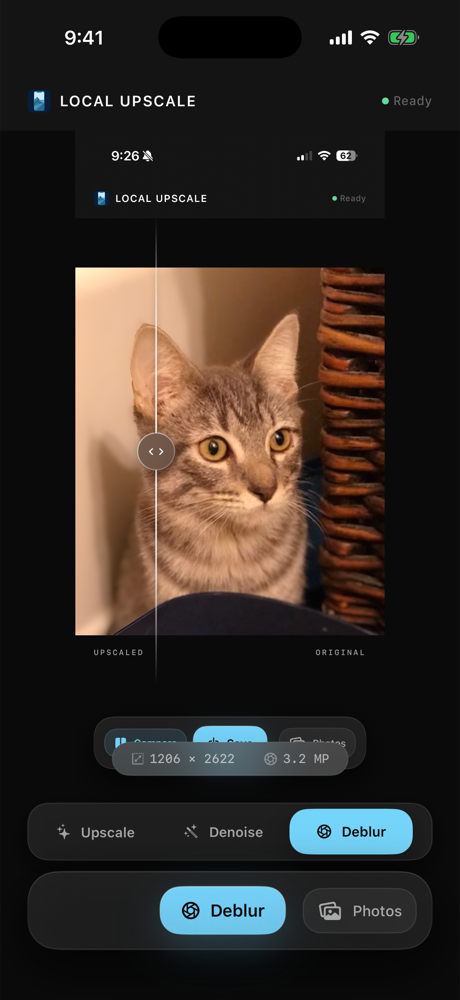
Offline upscaling workflow
- Open Local Upscale and choose an image.
- Select the upscaling mode when the photo is small or low resolution.
- Let the app process the image locally.
- Compare before and after.
- Save the enhanced copy to Photos if it is better.
What offline upscaling is best for
It works best for images that have enough source detail to improve: small downloads, old phone pictures, product reference photos, scanned prints, portraits, and saved images that need a larger copy for sharing or printing.
When to choose another mode
If the photo is already large but grainy, try denoise. If it is soft, try deblur. If a portrait needs facial detail restored, use portrait restore. Upscale is best when the main problem is size or resolution.